Cloud Management Systems | New release

UWB Indoor Positioning System

See which zone people are in,
right on the floor plan.

Locations of staff, visitors and equipment are shown in real time. Restricted zone entries and button help calls trigger immediate alerts, and every step of handling is recorded.

The UWB Indoor Positioning System is a cloud system developed in-house by YenProtek. It uses UWB indoor positioning to show the real-time locations of staff, visitors and mobile equipment on floor plans, raises alerts based on zone and status rules, and records every action taken and every movement track.

  • Phone, tablet, computer
  • Dark mode
  • LINE notifications
  • Excel import
  • Role permissions
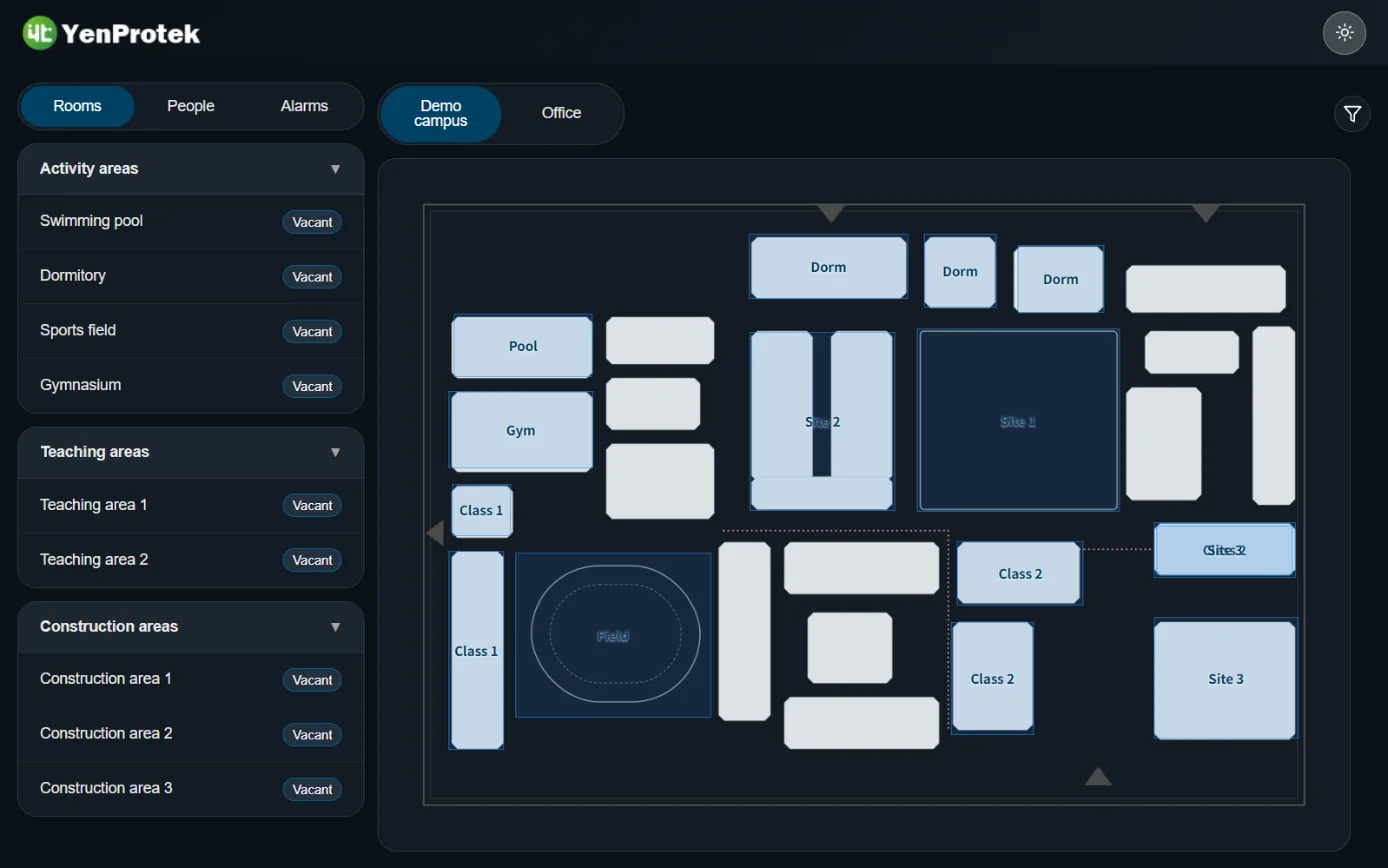
Real-time monitoring screen of the UWB Indoor Positioning System (dark mode): room list and status on the left, floor plan on the right
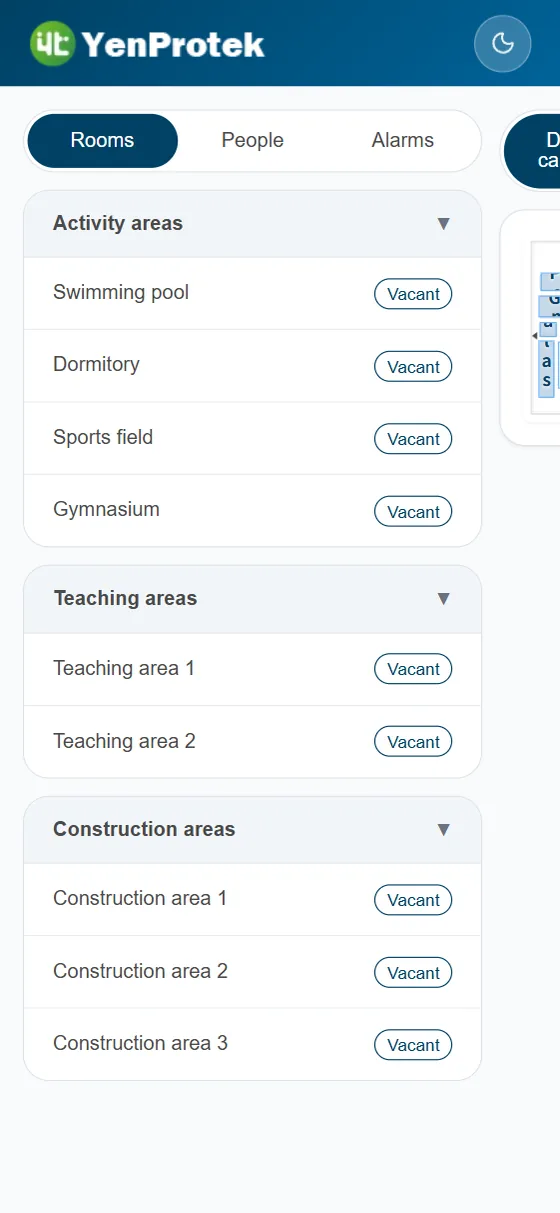
Real-time monitoring screen on a phone: spaces listed by room type with their status
3 types tracked
Staff, visitors and mobile equipment
can all carry a tag
LINE notifications
Once linked, alerts and timeout notices
are pushed to phones
Track playback
Search by person and time
Alerts drill down to the track
Excel import
Identity types, staff, tags and links
created in bulk

Why indoor positioning matters

The larger the site,
the more you need to know where people are.

You only find out where people are by asking

On a large site with frequent comings and goings, managers need to know not just who is on site but which zone they are in right now. The floor plan shows the location of every person and every piece of equipment in real time.

Restricted zone entry is found out afterward

Set restricted zones and whitelists for controlled areas, and an alert fires the moment an unauthorized person enters. Alerts can be assigned to staff and closed, with a full record kept.

Something happens and nobody knows

One press of the tag button is a service call or a call for help, and the alert goes straight to LINE. Who handled it and how long it took to clear are all in the history.

Function

Location, alerts, visitors and tracks:
one system covers it all

Real-time floor plan positioning, alerts from restricted zones and status rules, visitor check-in and tag return, and track playback of history. Accounts, identity types, tags and equipment are all managed in the same back end.

Real-time monitoring screen

Real-time locations of people, equipment and rooms on the floor plan. Switch between three tabs on the left (room type, person identity type and alarm), and switch between multiple floor maps in one click.

  • Rooms show their current status and head count
  • People are grouped by identity type (staff, visitors, contractors, etc.)
  • The alarm tab lists all unhandled events in one place

Alert management

Unhandled alerts can be assigned to a handler and closed. Historical alerts can be searched by alert time, location, alarm type and handler, and drilled down to the movement track for that period.

  • Assignment, closure and notes are all recorded
  • Restricted zones, whitelists and disconnection alerts set per room
  • Alerts are pushed in sync once LINE is linked

Visitor check-in and tag return

After the visitor record is created, a tag is issued and linked at check-in and unlinked at tag return on departure. Check-in time and the person in charge are recorded automatically.

Movement history

Search by tag, person and time and play back the movement track. Tag issue and return times and the service staff member are saved together.

Status rules

Both space status and person status can have trigger conditions and icons, for example a room "In use" or a person "Serving". When the conditions are met, the status updates automatically.

How It Works

From tag to floor plan,
to someone handling it

A UWB tag's location is received by the anchors and sent to the cloud. The cloud evaluates it against room, restricted zone and status rules, shows it on the floor plan and pushes alerts. Every alert must be assigned, handled and closed by someone.

  1. UWB tag Worn by people or mounted on equipment; each tag has a unique ID
  2. Anchors and positioning gateway Receive tag signals, calculate positions and upload them to the cloud
  3. Cloud evaluation Maps to rooms and zones, checks restricted zones, whitelists and status rules
  4. Floor plan and LINE Live locations and alerts appear on screen, and people with a linked LINE account are notified at the same time
  5. Assign and close Assign alerts to a handler, add notes and close; history drills down to the track

System Screens

The screens you open every day

Room status

Real-time monitoring screen: room list and status on the left, campus floor plan with each zone marked on the right

Actual system screen; data is sample data for demonstration

The left side lists each space's status, grouped by room type. The floor plan on the right uses colors to show rooms and people's locations, and floor maps are switched at the top.

  • Room types and display priority are customizable
  • Upload your own floor plans and set the scale
  • Filter to see only specific identity types or zones

People distribution

People tab of the real-time monitoring screen: grouped by visitors, contractors and faculty and staff

Actual system screen; data is sample data for demonstration

Switch to the People tab to expand groups by identity type (visitors, contractors, faculty and staff, etc.). Click a person to jump to their location on the floor plan.

  • Each identity type has its own display color, easy to tell apart on the floor plan
  • Staff, visitors and mobile equipment can all be assigned a tag
  • The administrator sets which identity types can be issued a tag

Alerts and rules

Set the rules first,
and the system keeps watch for you

Rooms can be set up with zone drawing, restricted zones and whitelists, and disconnection alerts. Space status and person status each have trigger conditions, and when the conditions are met the status updates or an alert fires.

  1. Zone drawing and restricted zones

    Draw the extent of each room on the floor map and assign a room type. Set rooms that need control as restricted zones and add a whitelist.

  2. Status rules

    Space status (for example "In use") and person status (for example "Serving") each have trigger conditions, required spaces and icons.

  3. Buttons and notifications

    Tag buttons can be set as service call or emergency help. The alert changes color on screen and is pushed to the linked LINE account.

  1. Alert raised Restricted zone entry, button help call, tag disconnection or a status rule being met
  2. Notification and display Marked on the floor plan, listed in the alarm tab, and pushed by LINE to the relevant people
  3. Stays on the pending list until closed Assign Name a handler and add notes
  4. Close and playback End time and handler go into the history, and the track for that alert can be drilled into

Roles and workflow

Front desk, supervisors and administrators,
each does their own job on a single set of data.

Accounts are created by administrators; self-registration is not available. Role permissions can go down to every feature page. Below are common setups.

System administrator

  • Create staff accounts, roles and identity types
  • Upload maps, set up rooms and restricted zones
  • Manage tags and issue them to equipment

Site supervisor

  • Assign and close alerts
  • Set space and person status rules
  • Search historical alerts and tracks

Front desk / on-site staff

  • Create visitor records, check in and issue tags, and process tag returns
  • View the real-time monitoring screen
  • Receive LINE alert notifications

Read-only

  • View real-time locations and status
  • Search history
  • Cannot edit any data

Getting started

Four steps to get started

  1. Provide your site floor plan

    Tell us the floor layout, the areas to control and who or what to locate, and we will plan the anchor positions.

  2. Install anchors and upload maps

    We install the UWB anchors and positioning gateway, upload floor maps, set the scale and draw the rooms.

  3. Import people and issue tags

    Import identity types, staff and tags from Excel, set roles and restricted zone rules, and link LINE notifications.

  4. Watch the screen and handle alerts every day

    Check visitors in and issue tags, process tag returns on departure, assign and close alerts, and play back tracks when needed.

Platform

Works in a browser

Works on phones, tablets and computers

Open it in a browser with nothing to install. Dark mode suits night shifts.

LINE notifications

Each user links their own LINE account and adds the official account as a friend, and alerts and timeout notices are then pushed to LINE.

Permissions by role

Role permissions can go down to every feature page. Accounts are created by administrators and deactivated when someone leaves or is replaced.

Excel bulk import

Import identity types, staff, tags and tag links in one go; the results list the action and message for each row.

Multiple floors and maps

Upload each floor map yourself and set its scale; switch floors in one click on the real-time monitoring screen.

Equipment can be located too

Once mobile equipment such as forklifts and carts is registered and issued a tag, it appears on the floor plan just like people.

Frequently Asked Questions

What can the UWB Indoor Positioning System locate?

Staff, visitors and mobile equipment (such as forklifts and carts) can all be assigned a tag. Identity types are defined by the administrator, and each identity type has its own display color and the tags that can be issued to it.

What hardware needs to be installed?

People wear a UWB tag, or the tag is mounted on equipment. UWB anchors and a positioning gateway are deployed across the site, and location data is uploaded to the cloud and shown on the floor plan. The number and placement of anchors depend on site size and partition layout; please contact us.

How accurate is the positioning?

UWB (ultra-wideband) positioning can tell which room or zone a person is in. Actual accuracy depends on anchor placement, partitions and obstructions. We assess it on site before deployment, so no fixed figure is published on this website.

What happens when someone enters a restricted zone by mistake?

A room can be set as a restricted zone with a whitelist. When an unauthorized person enters, the system raises an alert immediately: it is marked on the floor plan and listed in the alarm tab, and people with a linked LINE account are also notified. Alerts can be assigned to a handler and closed.

What can the buttons on the tag do?

Depending on the project configuration, a tag can have service-call and emergency-help buttons. When one is pressed, the system changes color on screen in real time and sends LINE notifications to the relevant people.

How are visitors managed?

The front desk creates the visitor record first. At check-in and tag issue, a tag is linked to the visitor, and at tag return on departure the link is removed. Check-in time, the person in charge and movement records on site are all saved.

Can movement tracks be played back?

Yes. Search movement history by tag, person and time, and play back the track. Historical alerts can also drill down directly to the track for that time period.

Can an existing staff list be imported?

Yes. Identity types, staff, tags and tag links can all be bulk imported from Excel, and the import result shows the action and message for each row.

Which languages does the interface support?

The interface is currently in Traditional Chinese and supports dark mode. It works in a browser on phones, tablets and computers.

How is pricing calculated?

Pricing depends on site size and the number of anchors and tags. Tell us your site floor plan and who or what you need to manage, and we will provide a recommended layout and a quote.

Send us a floor plan,
and we will plan the positioning and alerts for you.

Start with the demo system to go through every screen, then decide together on the anchor layout, the areas to control and the number of tags.